Guest Messaging Guide
This guide explains how to use the Guest Messaging feature to generate personalized check-in messages for your guests. These messages can be easily copied and pasted to any OTA platform (Airbnb, Agoda, Booking.com, etc.) or sent directly via SMS or WhatsApp.
Overview
The Guest Messaging feature helps you create consistent, professional check-in messages that include all the essential information your guests need:
- Property access details (WiFi credentials, door codes)
- Directions to the property
- House rules
- Check-in/check-out times
- Emergency contact information
Instead of typing the same information repeatedly, you set up a message template once per property. When a guest books, simply generate the message with one click and all the details are automatically filled in.
Setting Up Messaging for a Property
Before you can generate guest messages, you need to configure the messaging settings for each property.
Step 1: Access Property Settings
- Go to Settings from your dashboard
- Click on Properties
- Select the property you want to configure
- Click on the Guest Messaging tab (or the messaging icon)
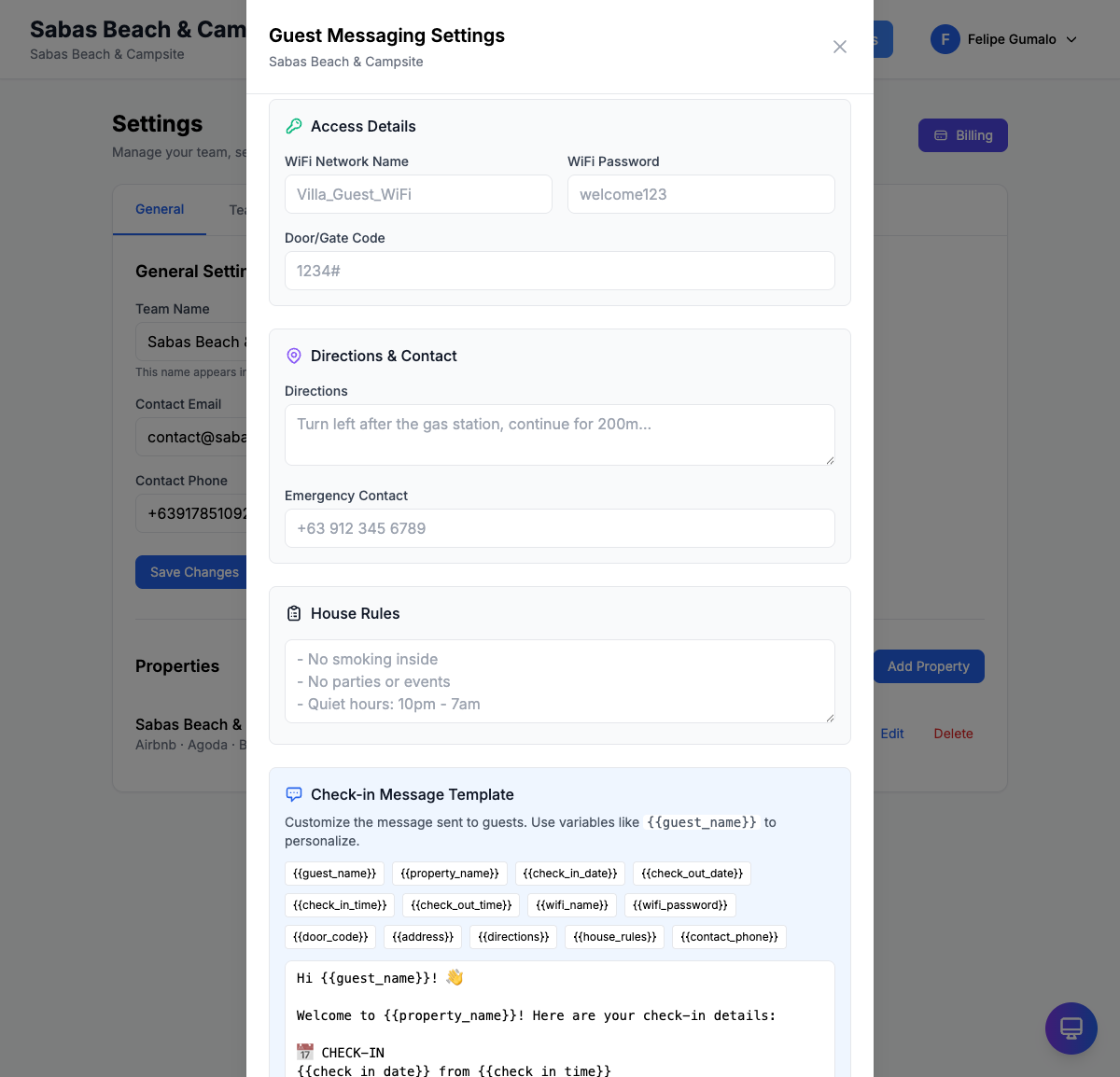
Step 2: Enter Access Details
In the Access Details section, enter:
| Field | Description | Example |
|---|---|---|
| WiFi Name | Your property's WiFi network name | BeachHouse_Guest |
| WiFi Password | The WiFi password | Welcome2024! |
| Door/Gate Code | Entry code for doors, gates, or lockboxes | 1234 or *5678# |
Step 3: Add Directions & Contact Information
In the Directions & Contact section, provide:
- Directions: Step-by-step directions from a landmark, airport, or main road. Be specific and include helpful tips.
- Emergency Contact: A phone number guests can call for urgent issues during their stay.
Example Directions:
From the airport, take the coastal highway north for 15km.
Turn left at the Shell gas station onto Beach Road.
The property is the third house on the right, blue gate with
palm trees. Look for the "Sabas Beach" sign.
Step 4: Set House Rules
In the House Rules section, list your property rules. Keep them clear and concise.
Example House Rules:
- No smoking inside the property
- Quiet hours from 10 PM to 7 AM
- Maximum 6 guests allowed
- No pets unless pre-approved
- Please conserve water and electricity
Step 5: Create Your Message Template
The Check-in Message Template section is where you craft the message that will be sent to guests. Use template variables (see below) to automatically insert booking-specific information.
Tip: Click the variable buttons below the template editor to quickly insert variables at your cursor position.
Template Variables
Template variables are placeholders that get replaced with actual booking data when you generate a message. They are enclosed in double curly braces {{variable_name}}.
Available Variables
| Variable | Description | Example Output |
|---|---|---|
{{guest_name}} |
The guest's name from the booking | Maria Santos |
{{property_name}} |
Your property name | Sabas Beach House |
{{check_in_date}} |
Check-in date | January 20, 2026 |
{{check_out_date}} |
Check-out date | January 23, 2026 |
{{check_in_time}} |
Standard check-in time | 2:00 PM |
{{check_out_time}} |
Standard check-out time | 11:00 AM |
{{wifi_name}} |
WiFi network name | BeachHouse_Guest |
{{wifi_password}} |
WiFi password | Welcome2024! |
{{door_code}} |
Door or gate access code | 1234 |
{{address}} |
Property street address | 123 Beach Road, Sabas |
{{directions}} |
Directions you entered | From the airport... |
{{house_rules}} |
House rules you entered | No smoking... |
{{contact_phone}} |
Emergency contact number | +63 917 123 4567 |
Sample Template
Here is a sample check-in message template you can customize:
Hi {{guest_name}}!

Welcome to {{property_name}}! We're excited to host you.

CHECK-IN DETAILS
- Check-in: {{check_in_date}} at {{check_in_time}}
- Check-out: {{check_out_date}} at {{check_out_time}}

ACCESS INFORMATION
- Door Code: {{door_code}}
- WiFi Network: {{wifi_name}}
- WiFi Password: {{wifi_password}}

DIRECTIONS
{{directions}}

HOUSE RULES
{{house_rules}}

If you need any assistance during your stay, please contact us at {{contact_phone}}.

Have a wonderful stay!
Generating a Message for a Booking
Once your property is configured, generating a guest message takes just seconds.
Step 1: Open the Booking
- Navigate to the Bookings page from your dashboard
- Find the booking you want to message
- Click on the booking to open the booking details
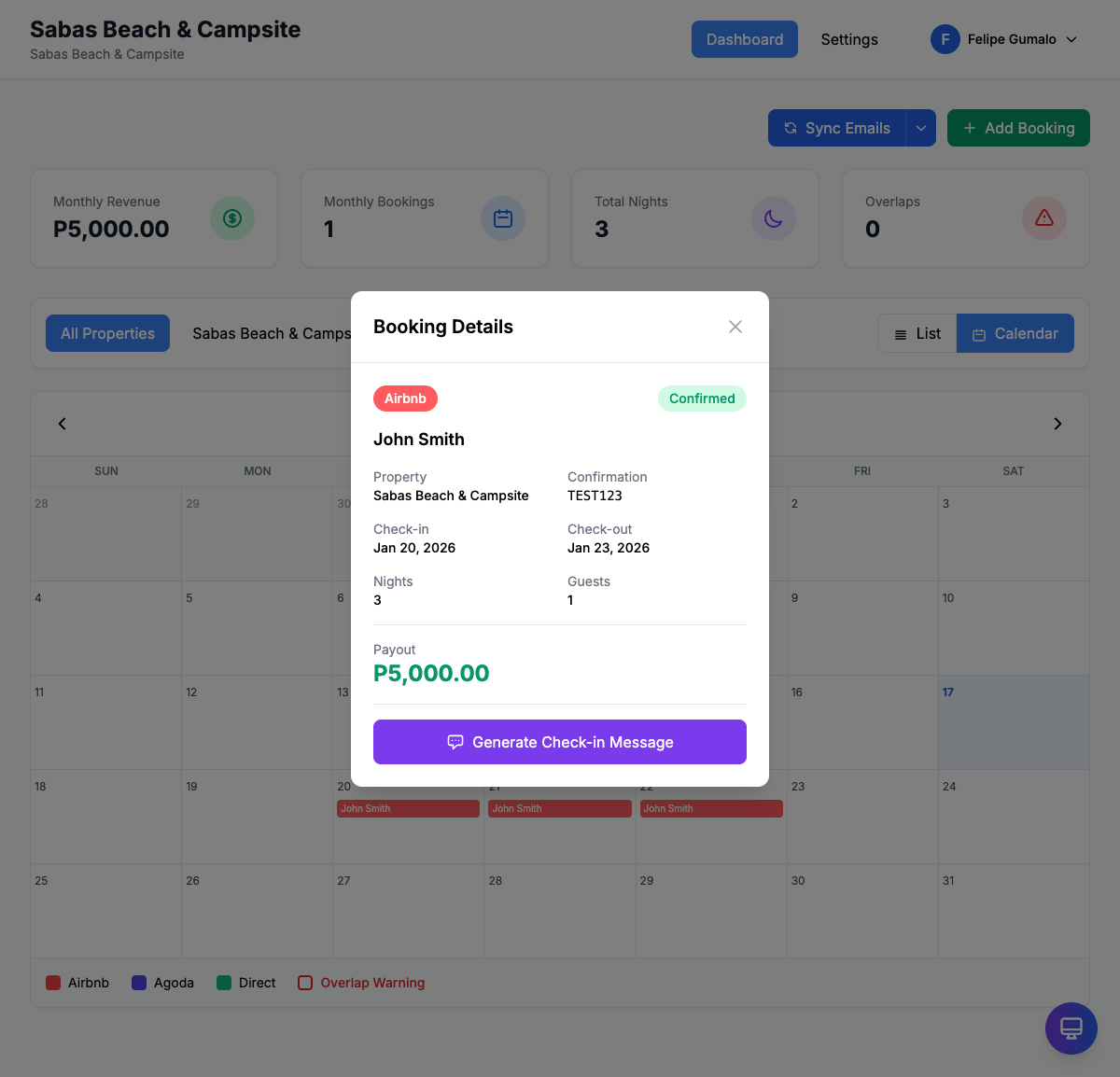
Step 2: Generate the Message
- In the booking details view, look for the Generate Message button (or envelope icon)
- Click the button to generate the check-in message
- The system will automatically:
- Pull the guest's name from the booking
- Insert check-in and check-out dates
- Fill in all property access details
- Include directions and house rules
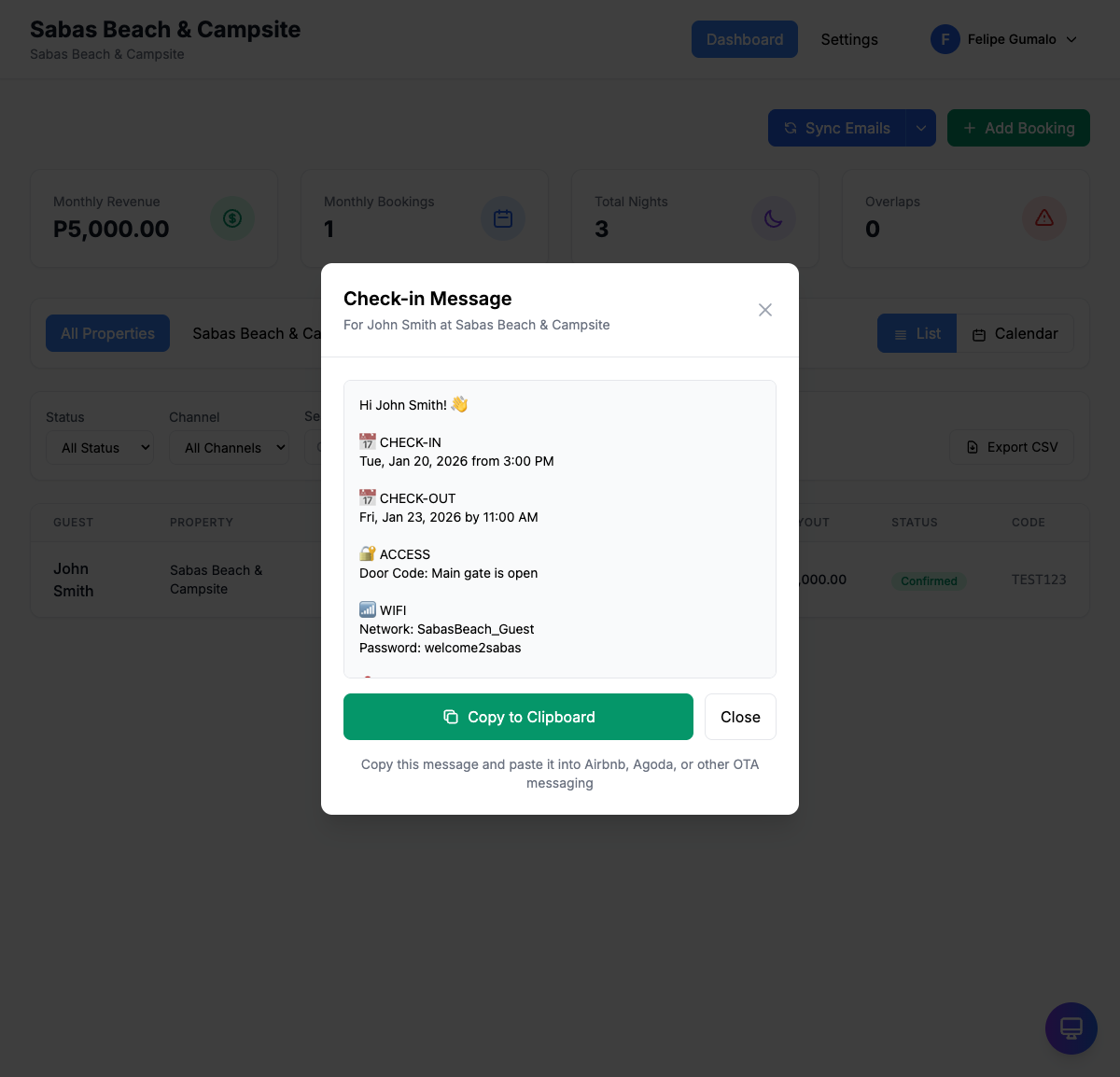
Step 3: Review the Message
Before copying, take a moment to review the generated message:
- Verify the guest's name is correct
- Confirm the dates are accurate
- Check that access codes are current
- Make any last-minute personalizations if needed
Copying and Sending the Message
Copy to Clipboard
- Click the Copy button next to the generated message
- A confirmation will appear: "Message copied to clipboard!"
Send via OTA Platform
- Go to your conversation with the guest on Airbnb, Agoda, or other platform
- Paste the message (Ctrl+V or Cmd+V)
- Review once more and click Send
Send via WhatsApp or SMS
- Open WhatsApp or your SMS app
- Start a conversation with the guest's phone number
- Paste the message
- Send!
Best Practices
Keep Templates Updated
- Review your templates seasonally for accuracy
- Update door codes immediately when changed
- Refresh directions if local landmarks change
Personalize When Possible
- Add a personal touch to the greeting
- Mention special occasions if noted (honeymoon, birthday)
- Include weather tips or local event recommendations
Timing Your Messages
- After booking confirmation: Send a brief thank you
- 1-2 days before check-in: Send the full check-in details
- Day of check-in: Send a quick reminder with access codes
Multiple Properties
If you manage multiple properties, each one can have its own unique:
- Message template
- Access details
- Directions
- House rules
This ensures every guest receives accurate, property-specific information.
Troubleshooting
Variables Not Replacing
If you see {{guest_name}} instead of the actual name:
- Ensure the booking has guest information filled in
- Check that variables are spelled correctly (case-sensitive)
- Re-save your template and try again
Missing Information in Message
If some details appear blank:
- Go to property settings and fill in the missing fields
- Save settings before generating a new message
Can't Find Generate Message Button
- Ensure you're viewing a specific booking (not the booking list)
- Check that your role has permission to access messaging features
- Contact your team administrator if needed
Need Help?
If you have questions about Guest Messaging or need assistance setting up your templates, please contact your team administrator or refer to our support documentation.